

Welcome to SESL Platform
This guide is for business users and managers. It explains what each screen is for and how to use it without technical steps.
Roles (what you might see)
- Viewer/User: read access to items shared with you.
- Developer: can edit models shared with them.
- Manager: manages items in their department.
- Admin/Super Admin: setup, billing, and all-access.
Getting started
- Click Login (top right).
- Enter your email/password or follow your invite link.
- Use the left sidebar for Servers, Models, Runs, Templates, Users, Billing, and Organizations.
Index
Finding people and access
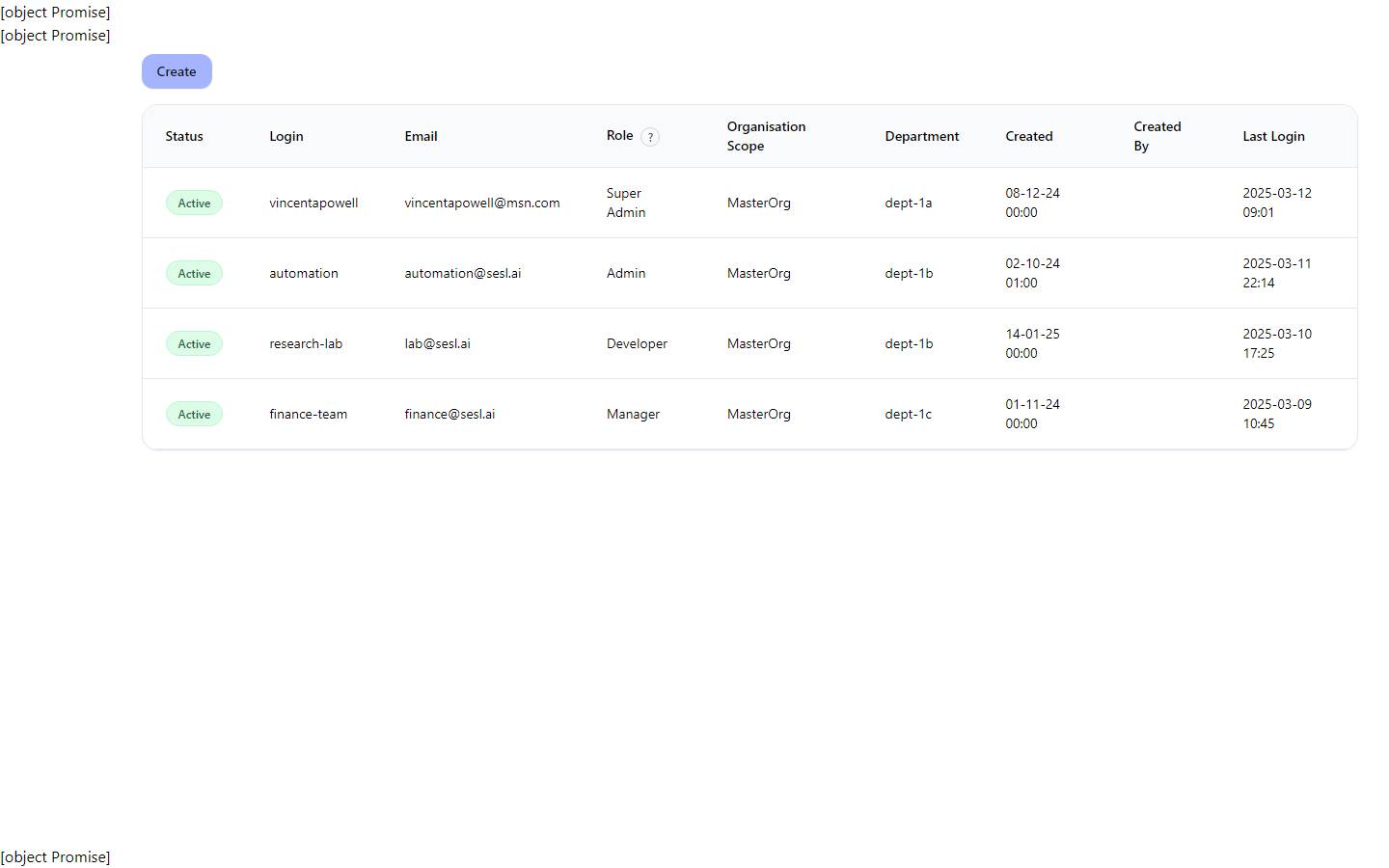
- Open Users to see who has access, their role, and which department/org they belong to.
- Status chips show if an account is Active or Suspended.
- Admins/Managers can create or update users; others can view shared users.
Working with models
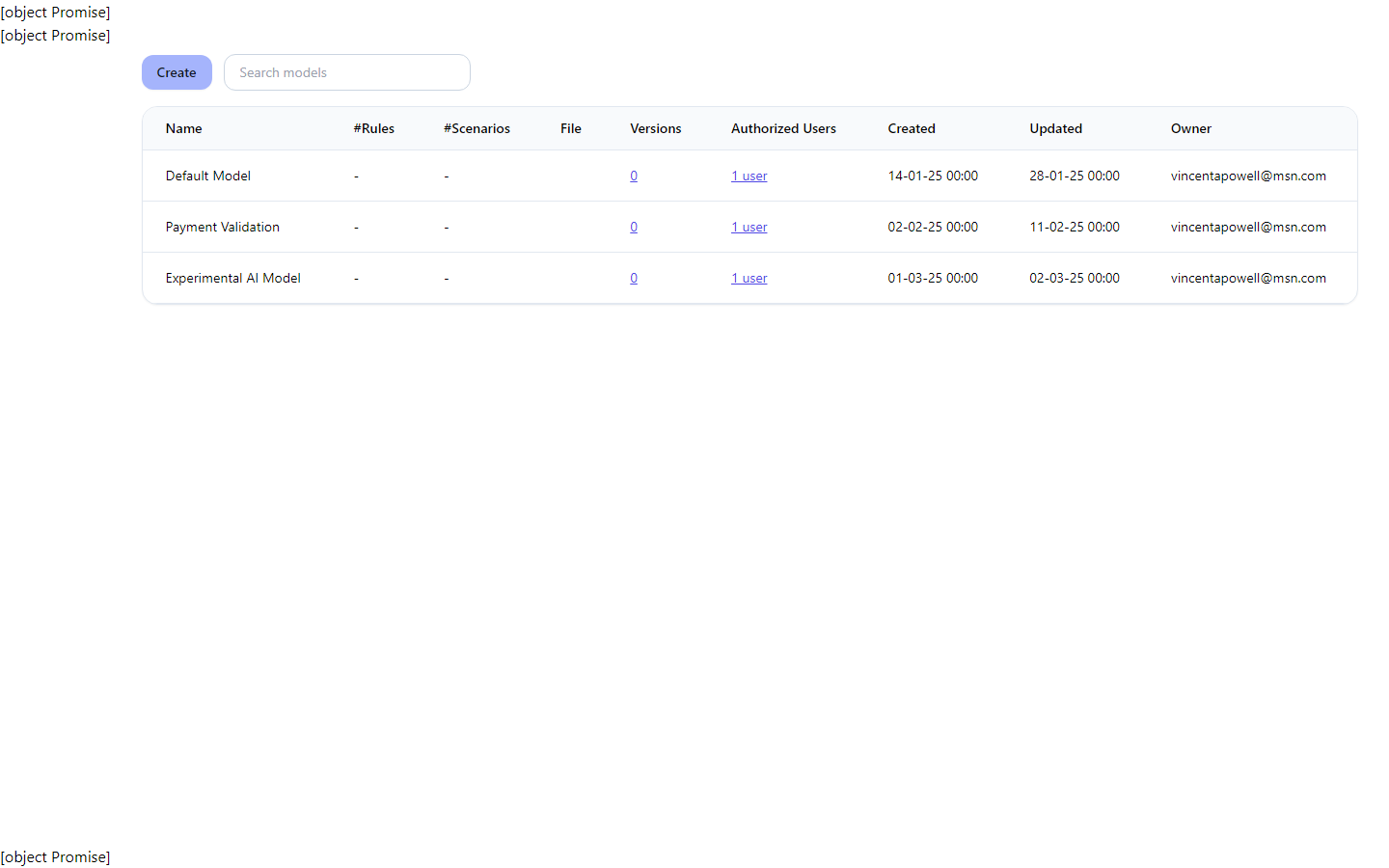
- Open Models to browse available business rules and logic files.
- Each model shows who owns it, when it was last updated, and which department it belongs to.
- Developers/owners can edit models; others can view what’s shared with them.
Servers and runs
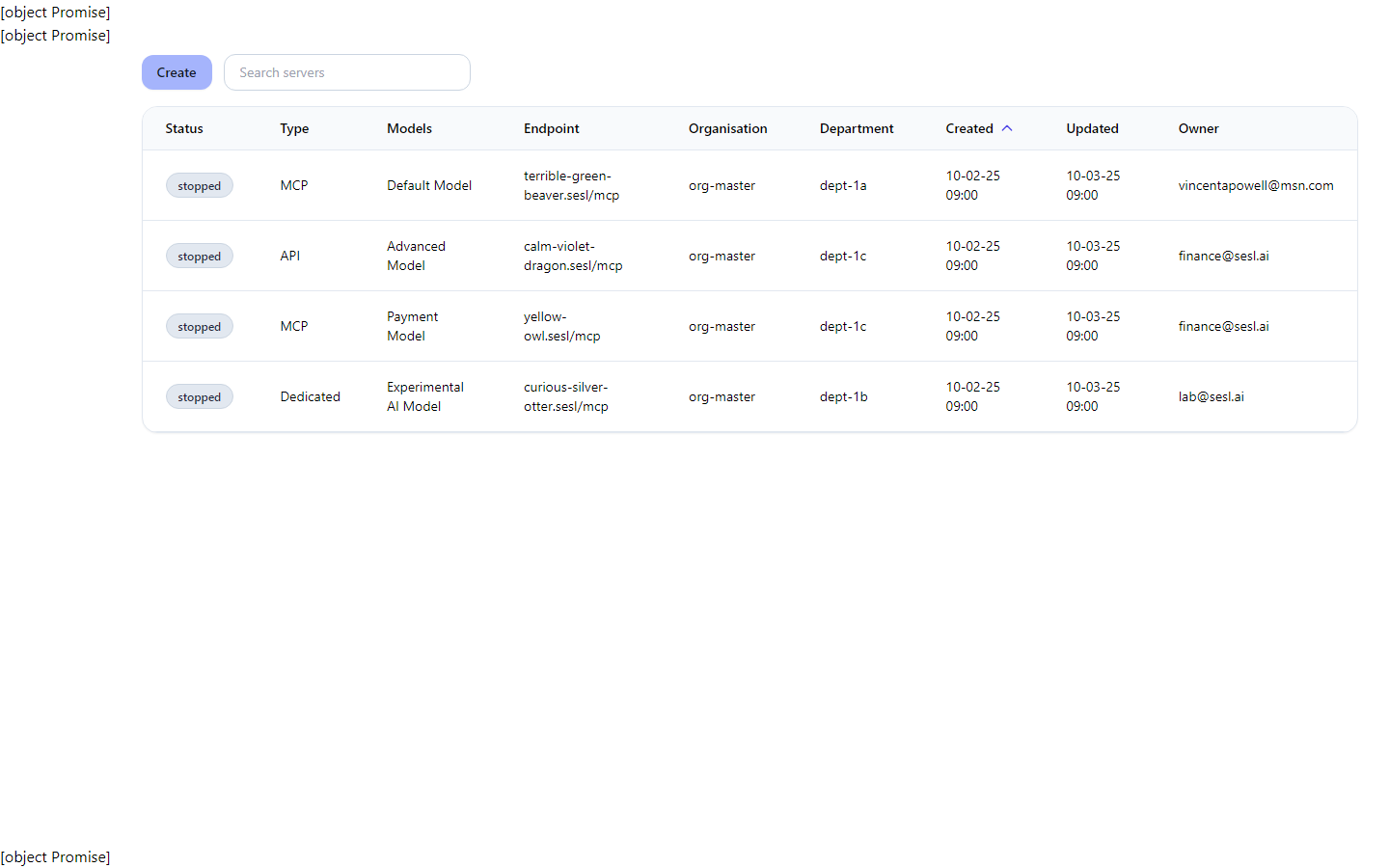
- Servers lists where models are deployed (production, staging, etc.) with contact endpoints.
- Sort or search by endpoint, owner, organization, or department.
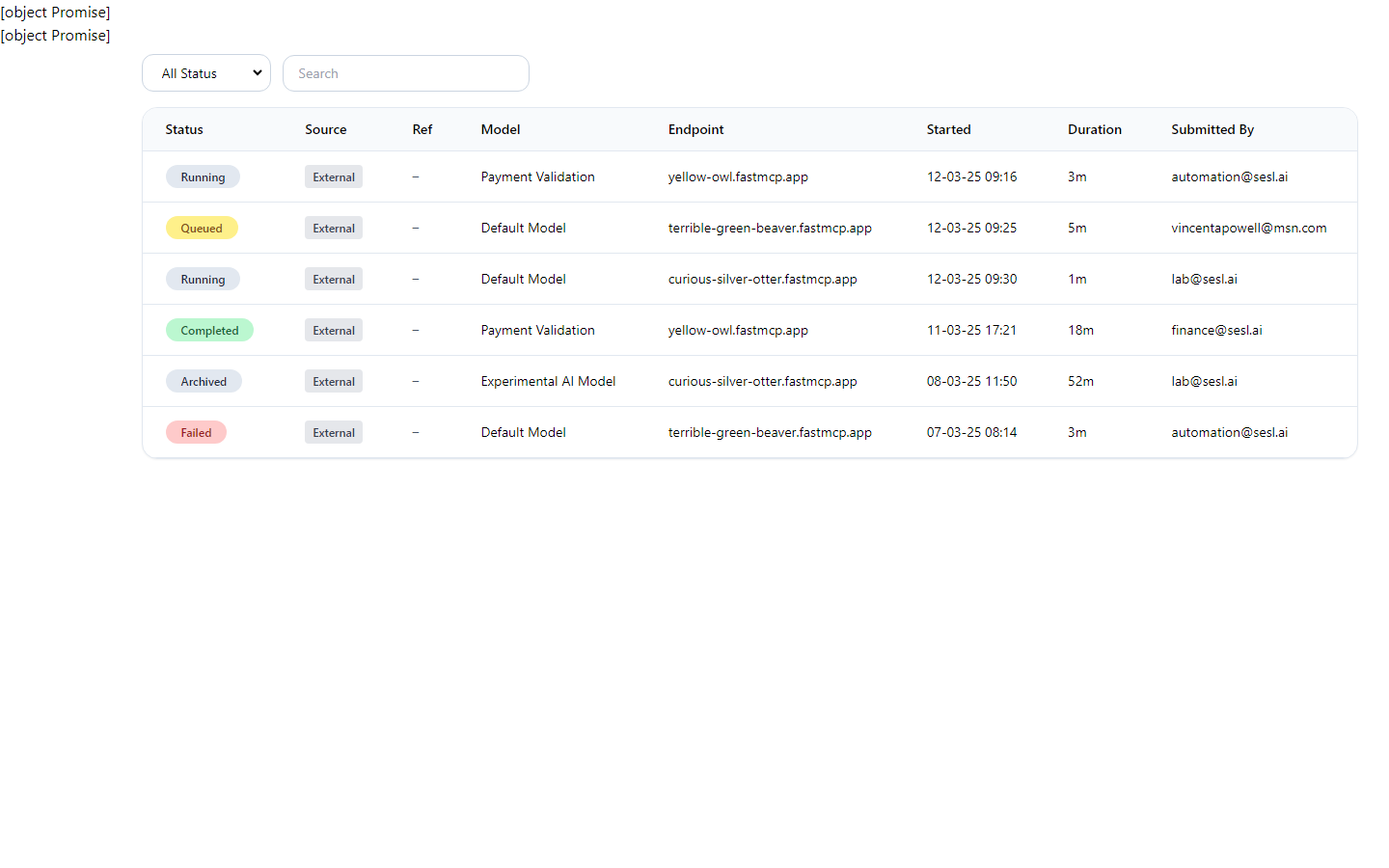
- Runs shows recent executions: who started them, which model, and whether they succeeded.
Templates, billing, and orgs
- Templates offers ready-made rule sets you can review or install (subject to your role).
- Billing summarizes seats and usage; only Admins see pricing details.
- Organizations shows your company structure (departments, invites, members). Managers/Admins handle invites.
If you need to make a change
- Go to the right screen (Users, Servers, Models, Runs, Templates, Billing, Organizations).
- Select the item; a side panel or dialog will show details.
- If you have permission, use the edit or create buttons to make the change; otherwise ask an Admin/Manager.
- Look for confirmation messages or updated rows after saving.
Screens (what you’ll see)
Users
See who has access, their roles, organization, and department.
- Filter by columns or scroll to find a person.
- Click a row to view details; Admins/Managers can edit or add users.
- Status pill shows Active or Suspended at a glance.
Models
Browse business rule files, see ownership, and update history.
- Sort by name, owner, org, or last update.
- Select a model to view details; developers/owners can edit.
- Use this list to confirm you’re working on the right version.
Servers
See where models are deployed and the endpoint to reach them.
- Sort by organization, department, created/updated date, or owner.
- Use the search bar to find an endpoint quickly.
- Admins can add or edit servers; others can view availability.
Runs
Track recent executions: who started them, which model ran, and the result.
- Scan status (Running, Completed, Failed, etc.) to spot issues.
- Check duration and server to see where it ran.
- Managers/Admins can monitor team activity; others see their own or shared runs.
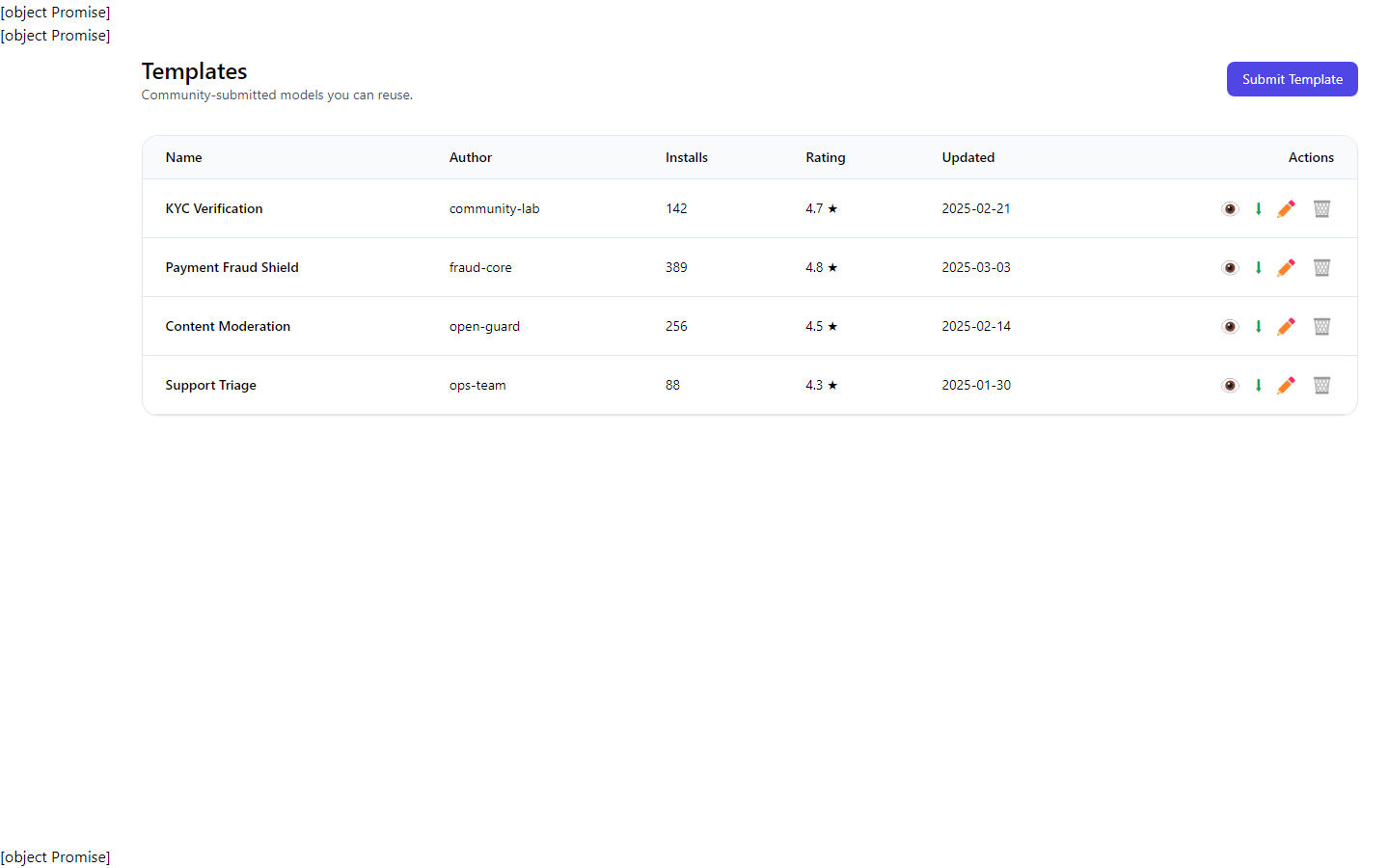
Templates
Pre-built rule sets you can review or install.
- Use to accelerate new use cases without starting from scratch.
- Check installs, ratings, and last updated dates.
- Admins/Managers decide what to install; others can view options.
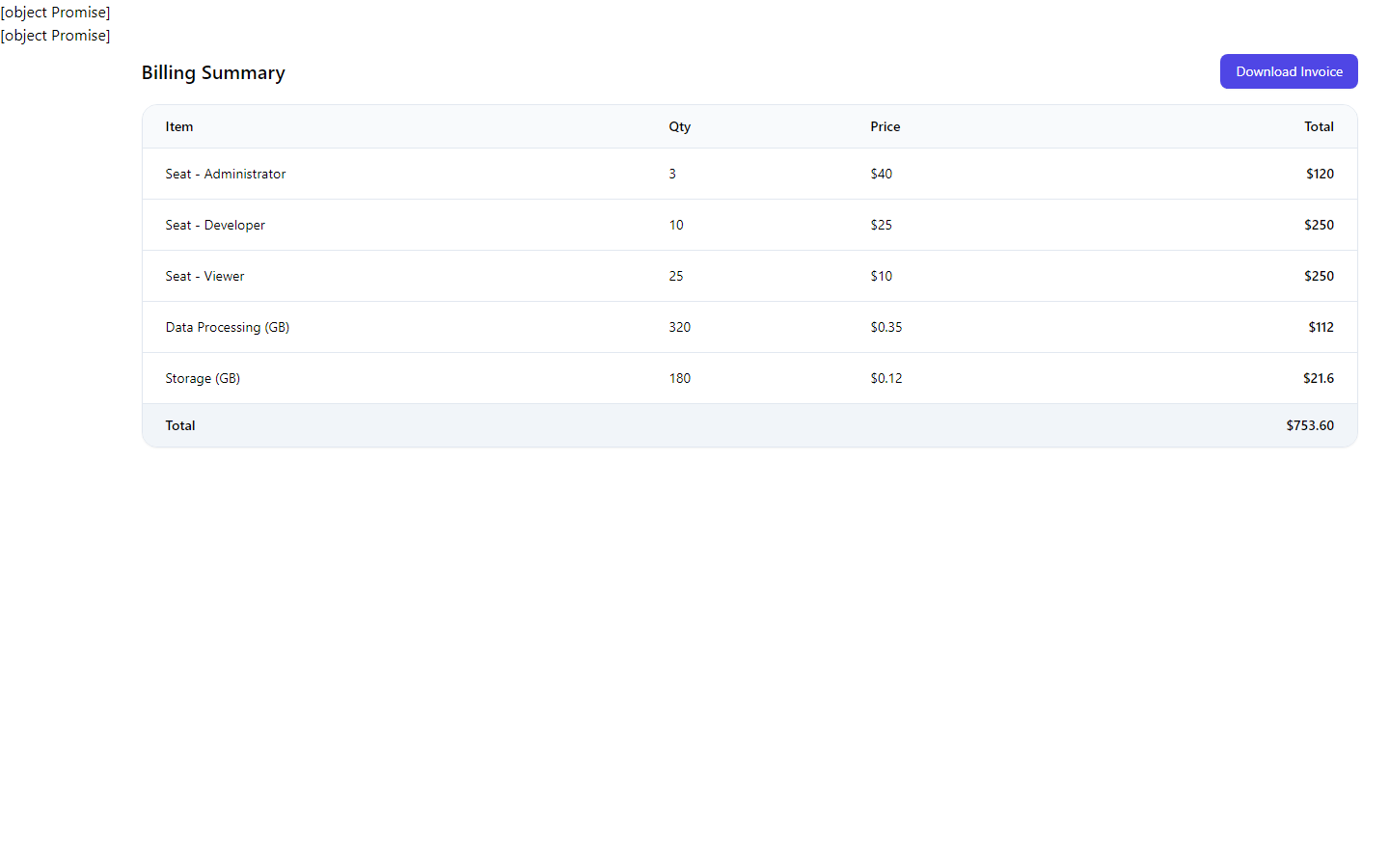
Billing
View seats and usage (data processing, storage) in one place.
- Admins use this to review cost drivers and seat counts.
- Line items show quantities and totals for easy review.
- If you need changes, contact an Admin to adjust seats or usage.
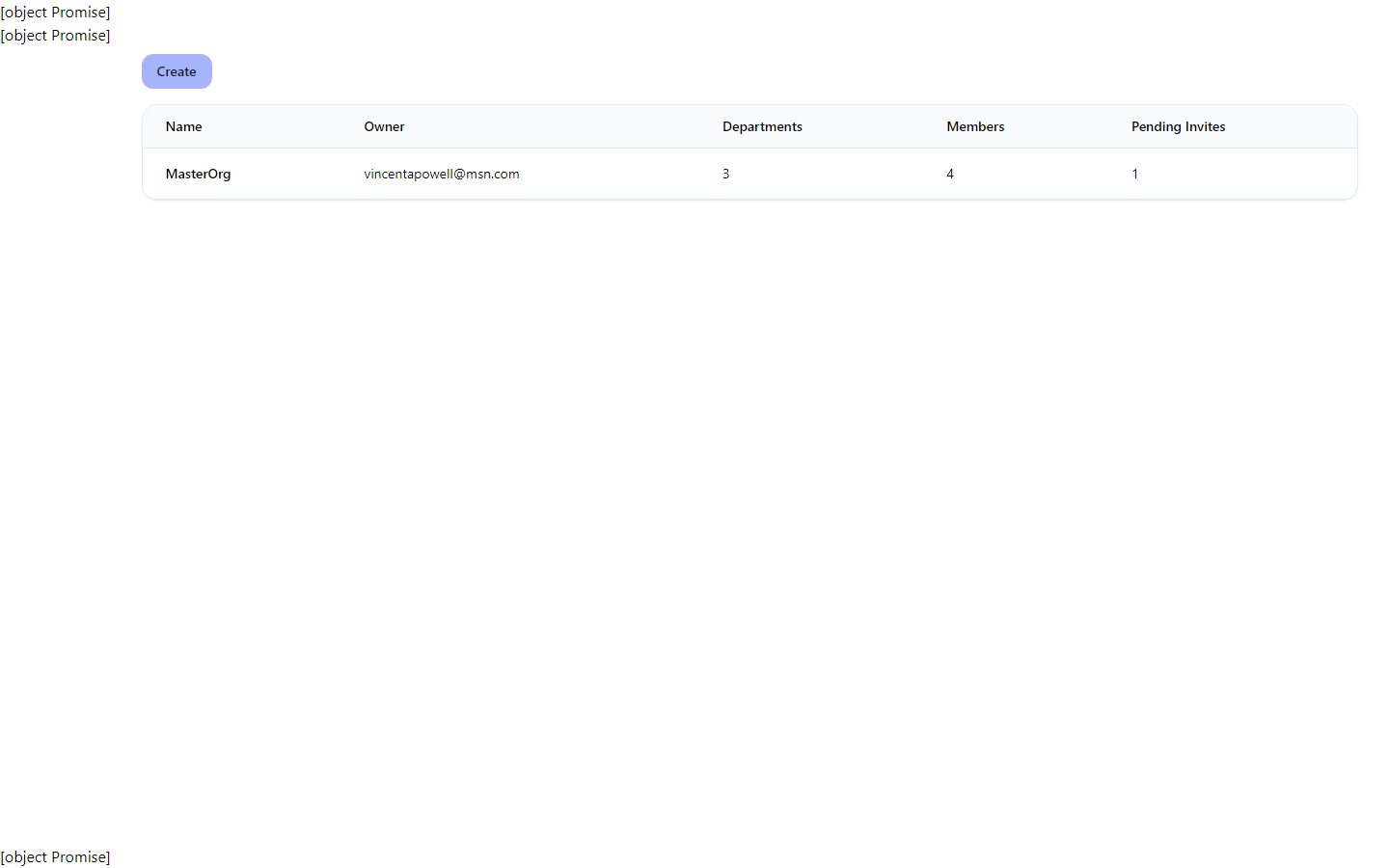
Organizations
See company structure: departments, members, and pending invites.
- Managers/Admins can create orgs/departments and handle invites.
- Use member counts to confirm who is inside each department.
- Pending invites are visible with quick status checks.
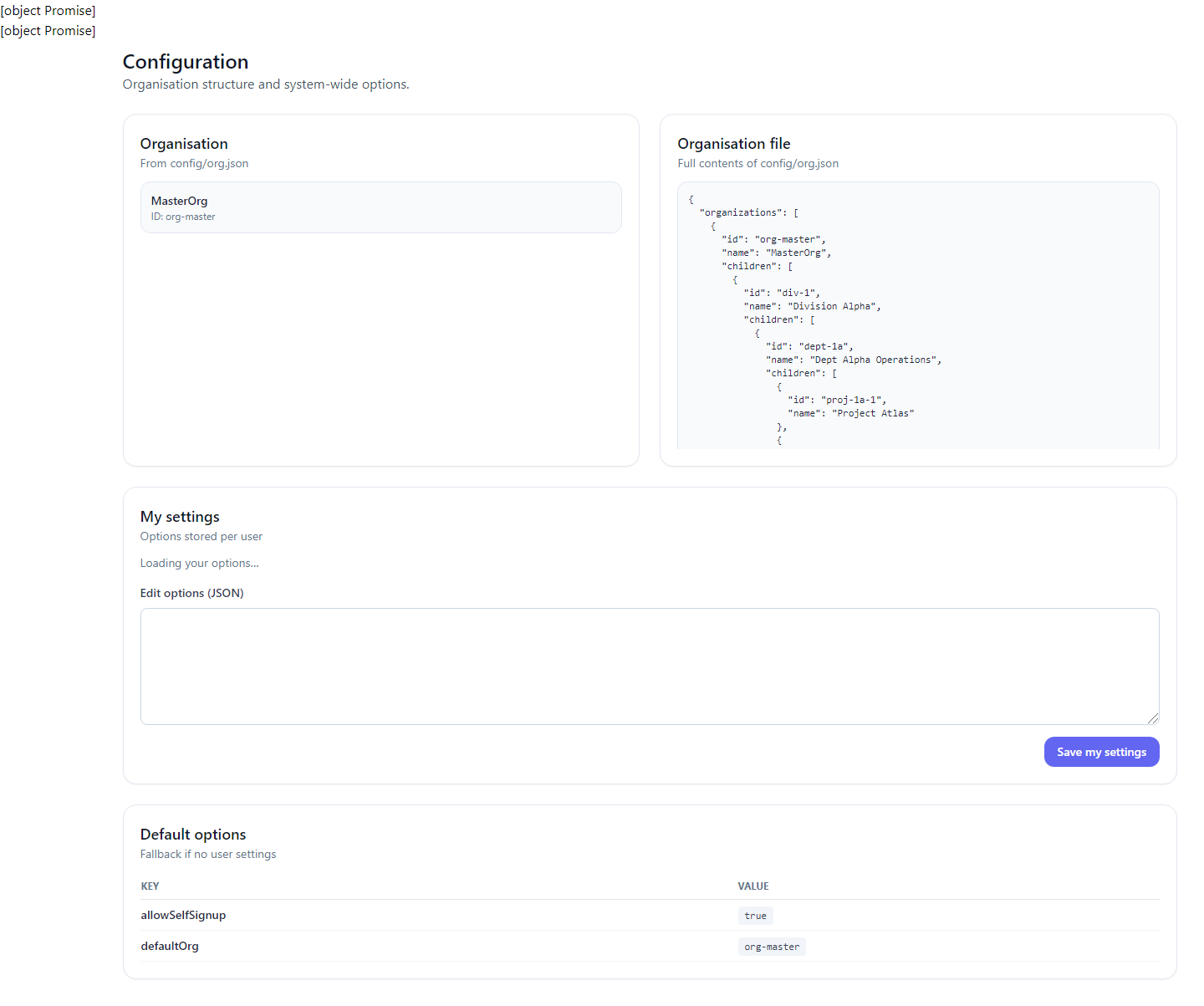
Configuration
Admin-only controls for defaults (e.g., self-signup) and organization options.
- Adjust platform defaults in coordination with leadership.
- Review org tree to ensure departments are structured correctly.
- Changes here affect how new users and orgs are set up.
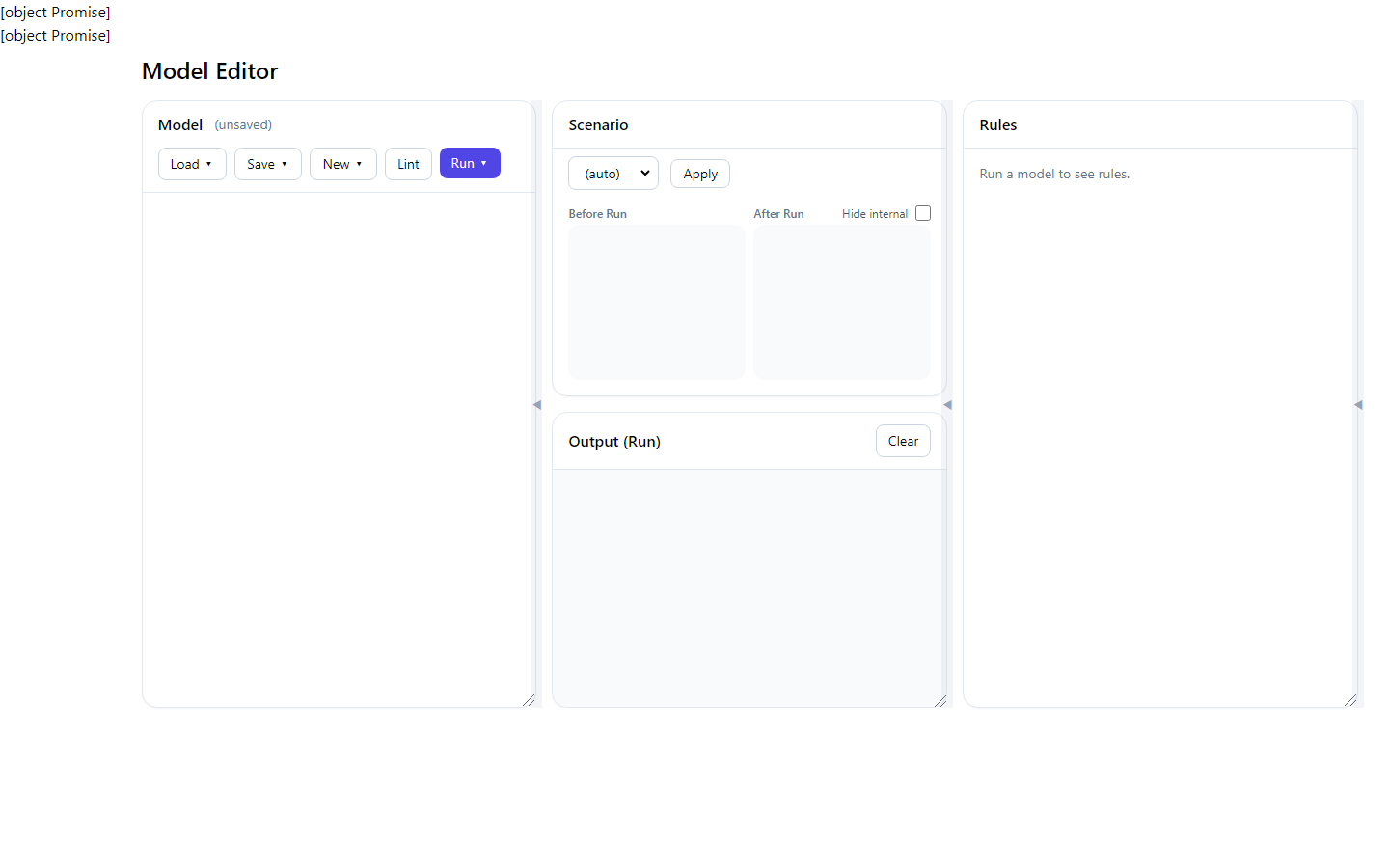
Model Editor
Workspace for creating or adjusting models (for users with edit permission).
- Start from blank, a template, or an imported text file.
- Save to keep versions; the system tracks who updated it.
- Use this when you need to change business rules; otherwise rely on the Models list.
APIs & Integrations
- Model CRUD with ownership validation; YAML meta merge and version history.
- Servers CRUD with org-aware ACLs; sorted by recency.
- Runs pagination at
/api/v1/runswith role-based filtering. - Organizations CRUD plus departments and invite flows.
- SES Lint endpoint (
/api/sesl/lint) calls the Python engine.
Risks & Next Steps
- Firestore and Firebase availability are core dependencies.
- Auth UI depends on Firebase scripts loading; server-side remains authoritative.
- Deletion blocked until ownership transferred for safety.
- Quick wins:
- Add automated tests for role-guarded endpoints and SESL linting.
- Wire telemetry for runs and model version changes.
- Expose scoped API tokens for CI/CD model publishing.